




- Table of Contents
-
- 1. What Is ChatGPT?
- 2. How to Proofread Text with ChatGPT
- 2-1. Access the ChatGPT site and log in.
- 2-2. Enter the prompt in the text box.
- 2-3. Confirm the output text.
- 2-4. Revise the document based on the suggestions.
- 2-5. Repeat steps 2 to 4.
- 3. Sample Prompts for Proofreading Text with ChatGPT
- 3-1. Prompt 1: Correcting grammatical errors
- 3-2. Prompt 2: Finding typos, misspellings, and other errors
- 3-3. Prompt 3: Finding unnatural phrases
- 3-4. Prompt 4: Checking for logical consistency
- 3-5. Prompt 5: Unifying terminology and notation rules
- 3-6. Prompt 6: Improving readability
- 4. Benefits of Proofreading with ChatGPT
- 5. How to Use ChatGPT for Proofreading with MTrans for Office
- 6. Security of ChatGPT
- 7. Summary
1. What Is ChatGPT?

ChatGPT is an AI chat service released by OpenAI in 2022. It utilizes a large language model (LLM) powered by artificial intelligence, characterized by its ability to respond as if it were human. Similar services include Claude by Anthropic, Gemini by Google, and Copilot by Microsoft. Depending on the instructions (called prompts), it can chat like a human; write emails, blogs, and scenarios; generate ideas; summarize long texts; and perform automatic translations. It can also code in various programming languages and write Excel formulas and functions.
ChatGPT also has document proofreading capabilities, which can improve the quality of your writing. By leveraging its natural language processing (NLP) technology that was trained on vast amounts of text, it is able to understand grammar and syntax and fix grammatical errors. Furthermore, it can glean context to suggest appropriate expressions and word choices for editing. It can even accommodate various writing styles, allowing it to proofread a wide range of document types, from business writing to casual texts.
2. How to Proofread Text with ChatGPT

2-1. Access the ChatGPT site and log in.
First, access the official ChatGPT website (https://chatgpt.com/) using your web browser. If you already have an account, enter your email address and password to log in. If you do not have an account, enter the necessary information to register and create one. After logging in, the ChatGPT interface will be displayed automatically. Check that the chat screen is open. Note that although you can use ChatGPT without creating an account, functionality will be limited, so creating an account is recommended.
2-2. Enter the prompt in the text box.
Write your prompt and copy the text you want to proofread into the text box at the bottom of the screen. To proofread more effectively, try to include as clear instructions as possible. Additionally, if you want the proofreading to be tailored to a more specific purpose (e.g., "improve the writing for business emails" or "format to academic paper standards"), you should add these things to the prompt. Once you have finished entering the instructions and target content, click the submit button or press the Enter key to send.
2-3. Confirm the output text.
Wait a moment for ChatGPT to output the edited results. The output may indicate errors in the initial grammar and expressions, offer suggestions for alternative expressions, and give advice on the overall structure of the text. Take your time to read ChatGPT's response and understand the proposed changes. It's a good idea to note down particularly important corrections or parts that are difficult to understand.
2-4. Revise the document based on the suggestions.
Based on the suggestions made by ChatGPT, revise the original text. It is important not to accept all suggestions blindly, but to judge whether each change aligns with the intention and context of the passage as you make revisions. When making revisions, edit the text in a separate text editing application, and make incremental changes as needed. Confirm that the revised text sounds natural and ensure that the intent is conveyed accurately. Reading the revised text aloud can make it easier to check the rhythm and natural flow, especially for important documents.
2-5. Repeat steps 2 to 4.
If further proofreading is needed for the revised text, or if you would like detailed advice on specific parts, you can ask ChatGPT to process the contents again. It helps to provide a prompt with instructions that are as specific as possible. By repeating this process, you can gradually improve the quality of the text. After several such exchanges, you may also notice particular habits or weak points in your own writing, to improve in future documents. Once you are satisfied with the final text, the proofreading process is complete.
3. Sample Prompts for Proofreading Text with ChatGPT

Here are some sample prompts for proofreading text with ChatGPT.
3-1. Prompt 1: Correcting grammatical errors
For the following text, please identify all grammatical errors and provide correction examples. Pay extra attention to the use of particles, consistency in verb tense, politeness level, and compatibility between subjects and predicates.
[Text]
[Paste your text here]
3-2. Prompt 2: Finding typos, misspellings, and other errors
For the following text, please identify all typographical errors and spelling mistakes.
List the corrections, explain the changes, and then present the completely corrected text.
[Text]
[Paste your text here]
3-3. Prompt 3: Finding unnatural phrases
Please identify all unnatural expressions in the following text.
Specifically, pay attention to literal-sounding translations from foreign languages, inappropriate phrasing, and expressions that feel awkward.
For each issue, explain why the passage feels unnatural and revise it to a more natural expression.
[Text]
[Paste your text here]
3-4. Prompt 4: Checking for logical consistency
Please check the logical consistency of the following text in detail. Evaluate the following points:
1. Consistency between the premise and conclusions
2. Logical leaps or contradictions
3. Insufficient explanation of cause and effect
4. Claims with unclear or insufficient evidence
Please list the issues as bullet points and provide specific suggestions to improve each.
[Text]
[Paste your text here]
3-5. Prompt 5: Unifying terminology and notation rules
Please check the consistency of terms and expressions in the following text.
Pay attention to the following points in particular, identify any inconsistencies, and suggest a unification plan.
1. Use of technical terms
2. Notation of numbers (spelled out or Arabic numerals)
3. Notation of dates and times
4. Mixing of abbreviations and full official names
Also, please correct the text according to the following terminology rules:
[If necessary, list specific terminology rules here.]
[Text]
[Paste your text here]
3-6. Prompt 6: Improving readability
Please suggest improvements to improve the readability of the following text.
Specifically, evaluate the text on the following points and suggest revisions.
1. Sentence length (split overly long sentences)
2. Paragraph structure and appropriate line breaks
3. Proper use of conjunctions
4. Reduction of redundant expressions and lengthy explanations
5. Inclusion of appropriate headings and list formats
6. Inclusion of explanations or rephrasing of obscure technical terms
Please present the revised text in its complete form.
[Text]
[Paste your text here]
4. Benefits of Proofreading with ChatGPT

Improve work efficiency and speed
Utilizing ChatGPT for proofreading can save a lot of time compared to traditional human proofreading. It can find grammatical errors and unnatural expressions in just a few seconds, even for long documents, saving valuable time in a deadline-driven work environment. Additionally, it can process multiple documents simultaneously, eliminating bottlenecks in the proofreading process and streamlining the overall workflow.
Reduce human errors made through manual proofreading
ChatGPT can consistently detect minor typographical errors, punctuation mistakes, and inconsistent expressions that are often overlooked by human proofreaders. Notably, it is not affected by human afflictions, such as fatigue during long proofreading sessions, enabling consistent work across the entire document. Additionally, it can tirelessly point out the same types of mistakes repeatedly.
Proofread in multiple languages
ChatGPT supports multiple languages, allowing you to proofread in various languages, from English to Chinese,, French, and so many more, even beyond your own language ability. In today's business environment, where global communication is essential, you can enhance the quality of international documents without having in-house multilingual proofreaders. Proofreading that accounts for subtle changes in nuance between languages and cultural backgrounds is also possible.
Improve employees' proofreading skills
ChatGPT can not only identify errors but also explain why a particular expression is unfitting and how it can be improved. This allows employees to enhance their proficiency in the target language through the process of proofreading. After using it repeatedly, they can start to recognize trends and habits commonly flagged in their writing and adjust to produce higher quality texts.
Check for unique writing rules
If your company enforces any in-house writing rules, adding those rules into the prompt will enable ChatGPT to check whether they're being followed. For example, if your company forbids the use of specific terms or has guidelines regarding style, listing these things in the prompt directs ChatGPT to proofread the text accordingly. This makes it possible to consistently reflect the company's brand image and message.
5. How to Use ChatGPT for Proofreading with MTrans for Office
MTrans for Office is a convenient software that integrates into Microsoft Office products (Word, Excel, PowerPoint, and Outlook), allowing users to access the ChatGPT generative AI model with a single click.
The screenshot below is an example of proofreading performed in Word. The results are displayed on the right side of the screen.

MTrans for Office includes various prompts for things like writing assistance, translation, and email composition, in addition to document proofreading. You can customize existing prompts or register entirely new ones, allowing you to add writing rules and instructions according to your business needs. Registered prompts can be invoked with a single click, and if you set up automatic execution, the prompts will be triggered automatically based on cursor movements or text input timing.
6. Security of ChatGPT
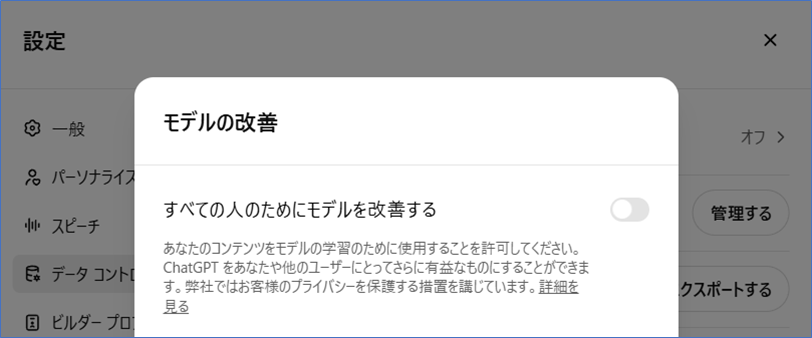
By default, any content entered into ChatGPT may be used to train and improve the model. To prevent this, visit https://chat.openai.com/#settings/DataControls in your web browser and turn off the toggle switch for "Improve the model for everyone."
If you use ChatGPT via an API, the data will not be used for training, as described below. In other words, if a tool or software uses API integration to connect with ChatGPT, confidentiality of the input data will be maintained when you use the translation function of ChatGPT via that software or tool.
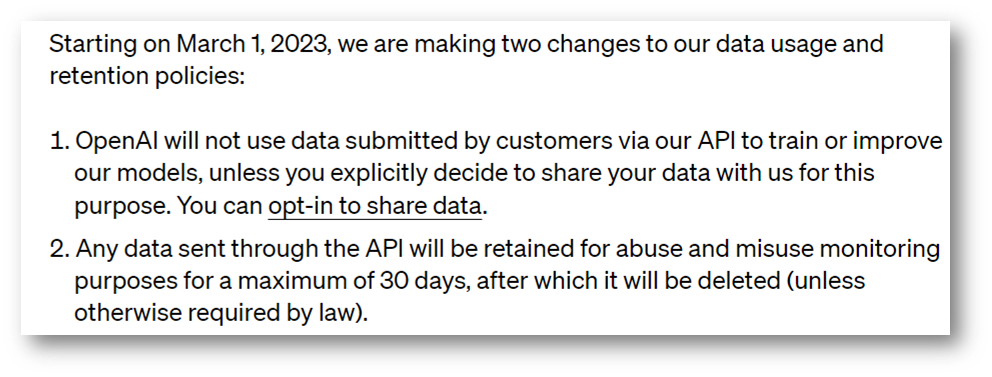
(Source: https://openai.com/policies/api-data-usage-policies)
7. Summary
Utilizing ChatGPT for document proofreading offers many benefits, such as improving operational efficiency, reducing human errors, enhancing the quality of international documents through multilingual support, and increasing employees' personal proofreading skills. However, you must exercise caution in regards to data handling and risks. By using tools like MTrans for Office, you can easily access ChatGPT's features from Microsoft Office products while ensuring data confidentiality.
Human Science offers an automatic translation product, MTrans for Office, with OpenAI's API integration. By using the API, you can utilize the proofreading function of ChatGPT without the risk of information leaks. Using MTrans for Office allows you to call OpenAI directly from Word, Excel, PowerPoint, and Outlook with just one click, to not only proofread, but also translate or even write foreign language documents. You can also create your own prompts. Try the quality and usability of MTrans for yourself with our 14-day free trial offer.



















 Return to the top of the page

 +81 35-321-3111[Tokyo Headquarters]
  Contact Us
 Request for Information