


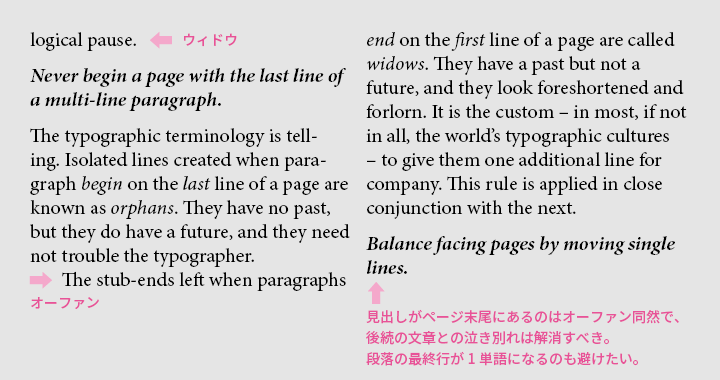
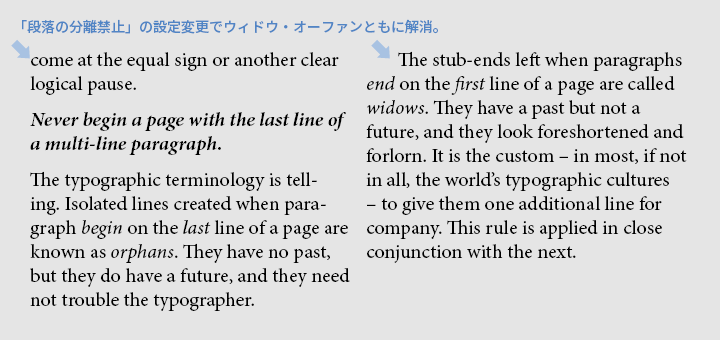
Have you ever heard the terms “widow” or “orphan”? A widow is when the last line of a paragraph is isolated at the top of the next column or page, or when the tail of a short word or a hyphenated word is left alone on the last line. An orphan is when the first line of a paragraph is isolated at the bottom of a column or page. Because these reduce readability and are typographically undesirable, widows should be eliminated as much as possible, and orphans should also be avoided if possible. We want to set styles so that these occurrences are minimized.
Also, it is not good for elements that should remain inseparable, such as headings and lead sentences, or illustrations and captions, to be split across pages. Additionally, you may want to always place a heading at the top of a column or page, or avoid breaking an important passage across columns or pages. These settings can be configured in the paragraph style's "Keep Options."
- Table of Contents
Keep Options
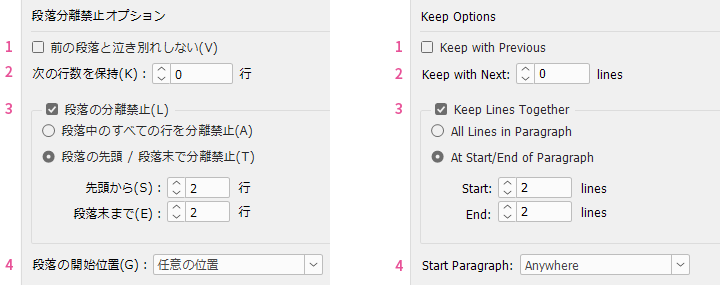
1. Keep with Previous
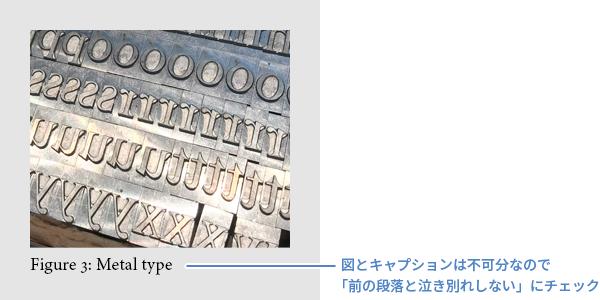
For paragraphs such as figure numbers or table footnotes that must not be separated from the immediately preceding paragraph, check "Keep with Previous."
2. Keep with Next
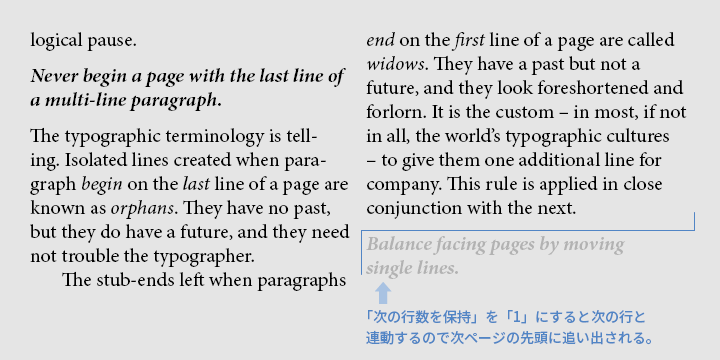
Used in the opposite case of "Keep with Previous," when you do not want the paragraph to be separated from the following paragraph. Set this for paragraphs such as headings that must always be followed by some text, or paragraphs that must not appear at the bottom of a page. You can set it within a range of 1 to 5, and usually 1 is sufficient, but increase it as needed if you want to avoid headings appearing near the bottom of a page.
3. Keep Lines Together
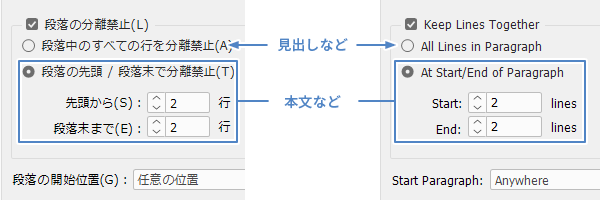
This is an option to avoid widows and orphans, and unless there are special circumstances, it should generally be checked. For paragraphs such as headings that must not be split by a column or page break in the middle, select "Keep All Lines in Paragraph". For paragraphs like body text where splitting by column or page break is acceptable, select "Keep Lines Together at Start/End of Paragraph". The number of lines below can remain at the default of 2 for both. This prevents isolated lines from appearing at the top or bottom of a page.
4. Start Paragraph
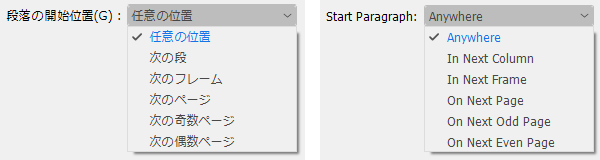
If you determine the start position of a paragraph by repeatedly pressing Enter, the position of paragraph breaks and page breaks will shift every time the text increases or decreases due to revisions or translation, causing the effort for visual checks and manual adjustments to increase endlessly. You can specify the start position of a paragraph using paragraph styles without doing that. For example, you can differentiate by setting chapter titles to "Next Odd Page," major headings to "Next Page," and minor headings to "Anywhere."
Please also see past articles for the reasons why you should avoid section breaks and page breaks caused by blank lines.
>>https://www.science.co.jp/nmt/blog/44321/#link01_5
If you use split characters (such as section breaks or page breaks) instead of the "Start Paragraph" setting, you will have to replace them one by one if you decide to change your approach later. In that case, it is more convenient to set it in the paragraph style so you can change it all at once. Also, while the method of inserting split characters to override the paragraph start position is easy and may seem good at first glance, if the amount of text added or removed due to revisions or translation becomes large, unnatural gaps will inevitably occur, and you will end up relying on manual adjustments. Make full use of the "Keep Lines Together" option and aim to create data that requires minimal manual work.
Main Reference Materials
Robert Bringhurst, The Elements of Typographic Style (4th ed.), 2012
Nigel French, InDesign Type: Professional Typography with Adobe InDesign (3rd edition), 2014
髙岡昌生『増補改訂版 欧文組版 タイポグラフィの基礎とマナー』烏有書林、2019




















 Return to the top of the page


 +81 35-321-3111[Tokyo Headquarters]
  Contact Us
 Request for Information